 OpenCode
Connect OpenCode Desktop to 4i.codes
Before you begin, create an API key for an OpenAI service group in the 4i.codes console. See API Keys and Access if needed.
Step 1: Download and open OpenCode
Visit the OpenCode download page, install the desktop app for your operating system, and open it to reach the main screen.
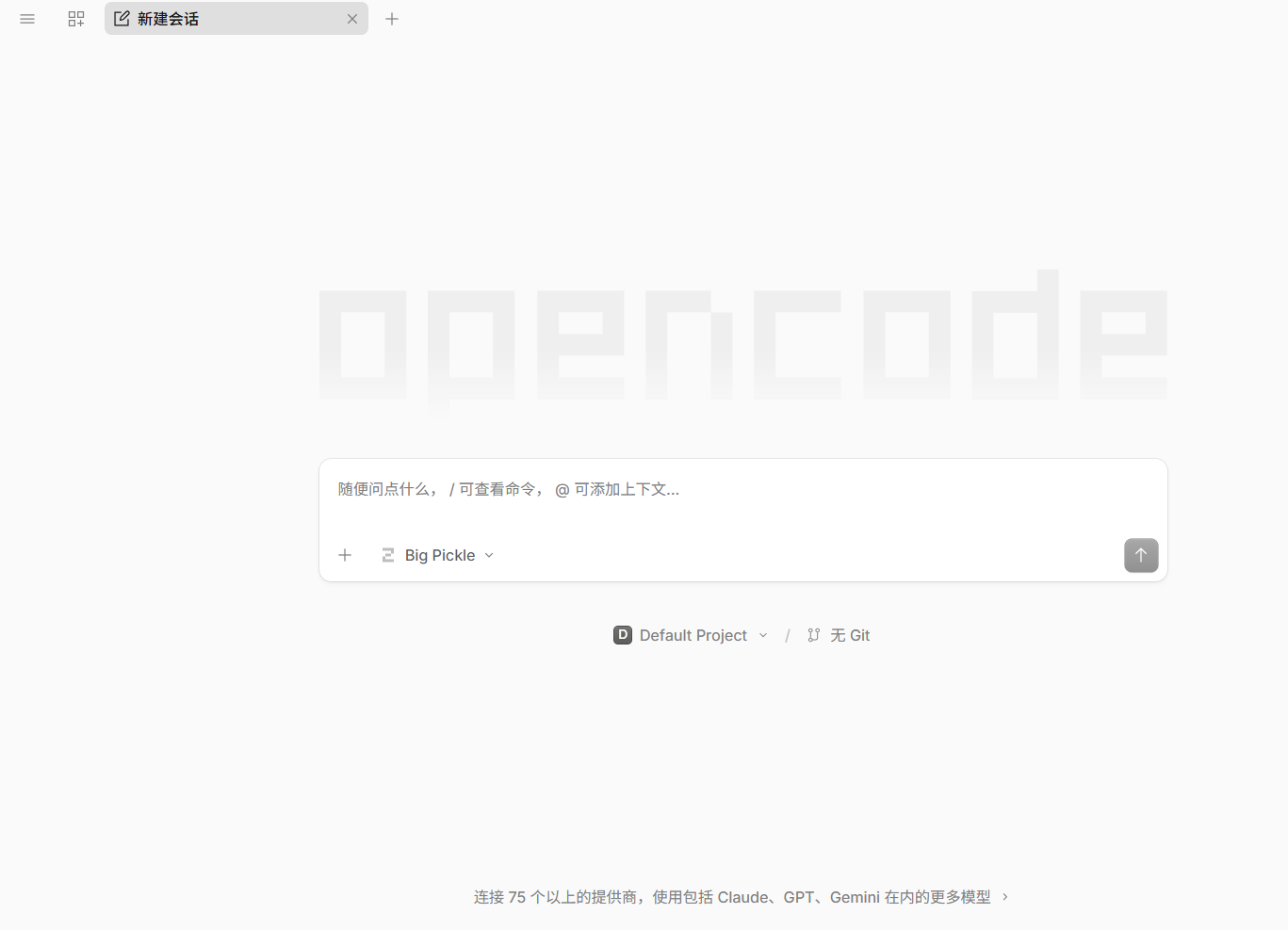
Step 2: Add a custom OpenAI-compatible provider
- Click the current model name at the lower-left corner of the prompt box.
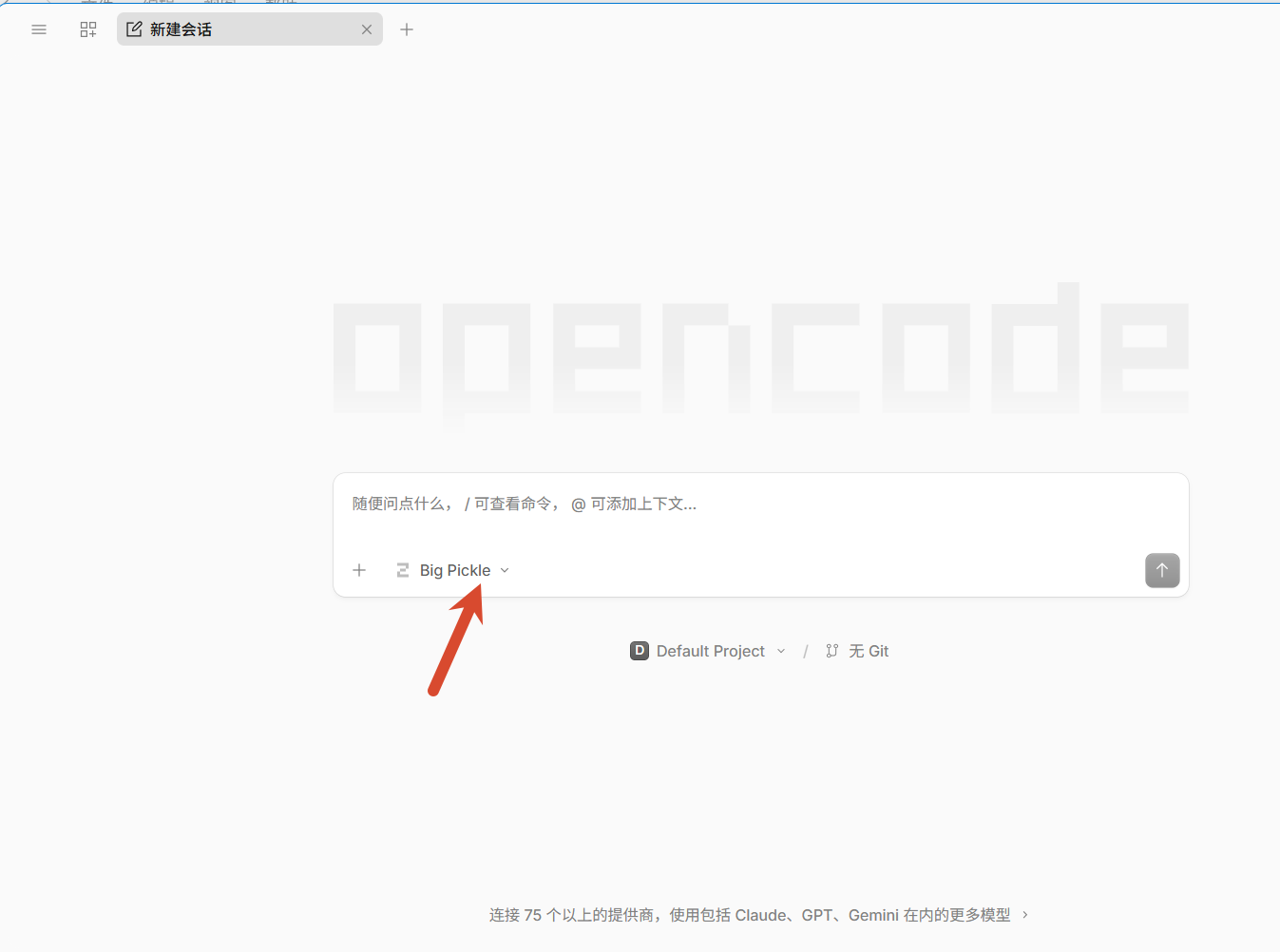
- Click
View 70+ more providersat the bottom of the model window.
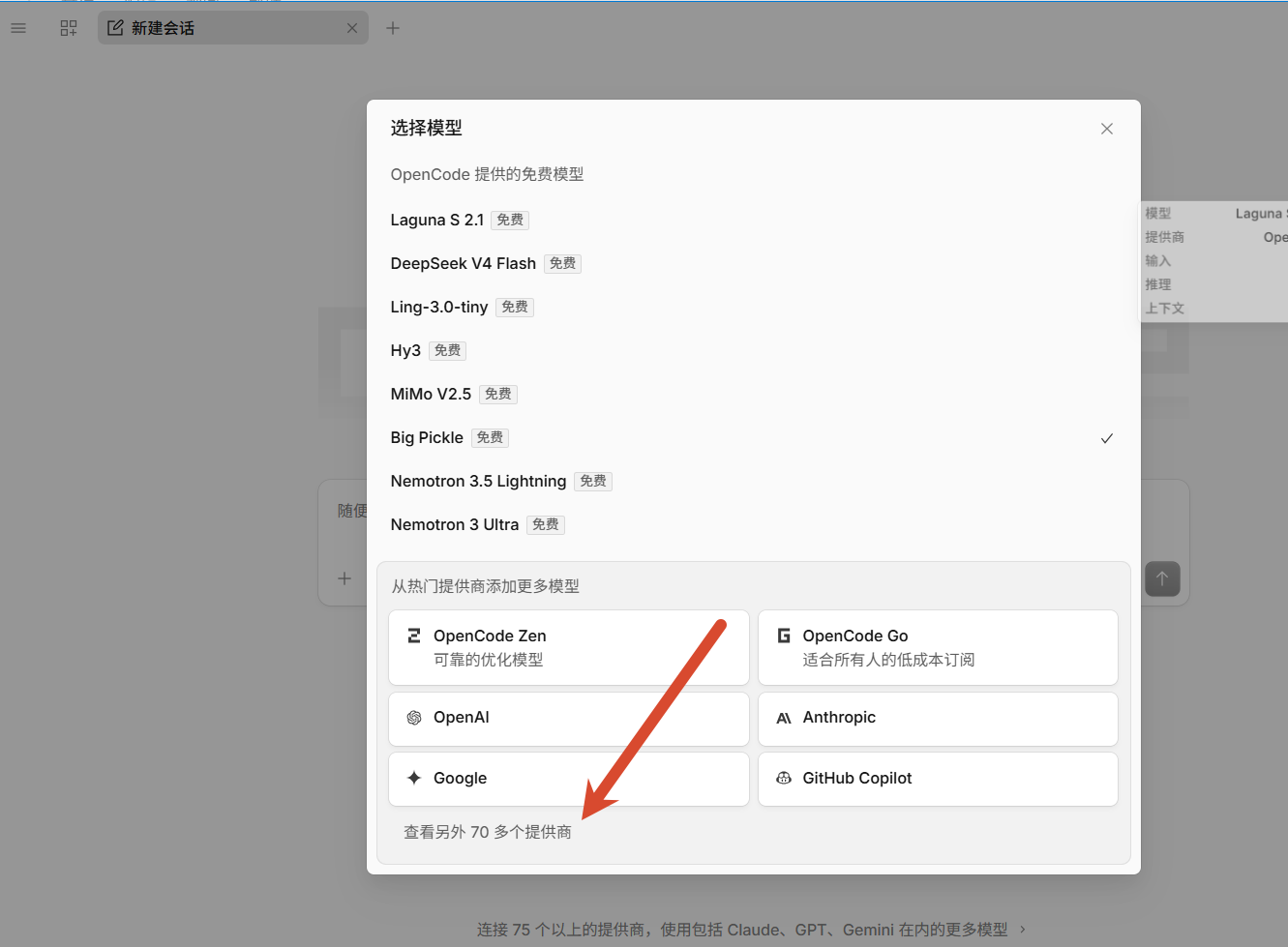
- Select
Custom OpenAI-compatible providerfrom the provider list.
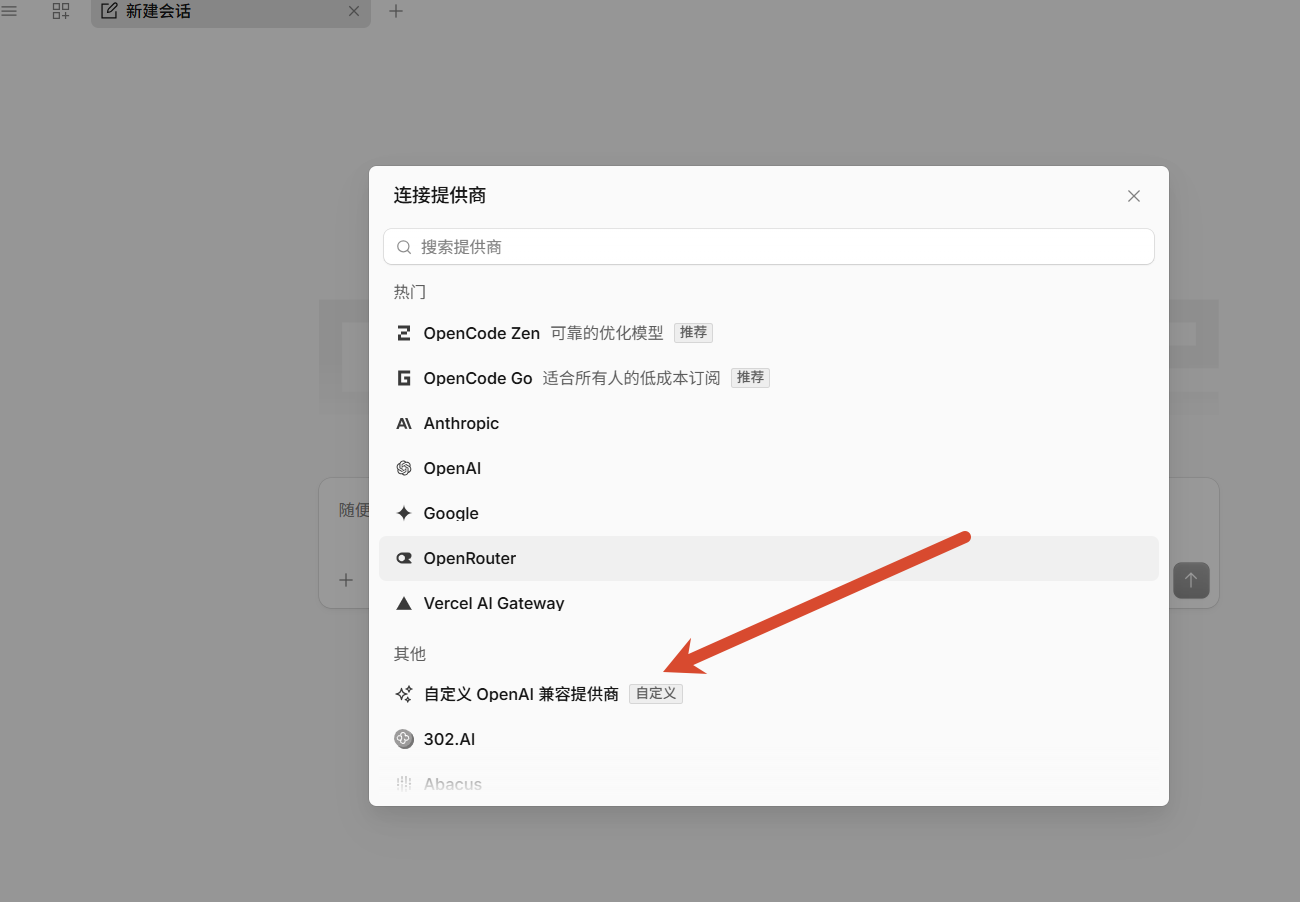
Step 3: Configure the custom provider
Use the following values:
Provider ID: enter4icodes. This field accepts lowercase letters, numbers, hyphens, or underscores.Display name: choose any name;4i.codesis recommended for easy identification.Base URL: enterhttps://api.4i.codes/v1.API key: enter the API key created in the 4i.codes console.
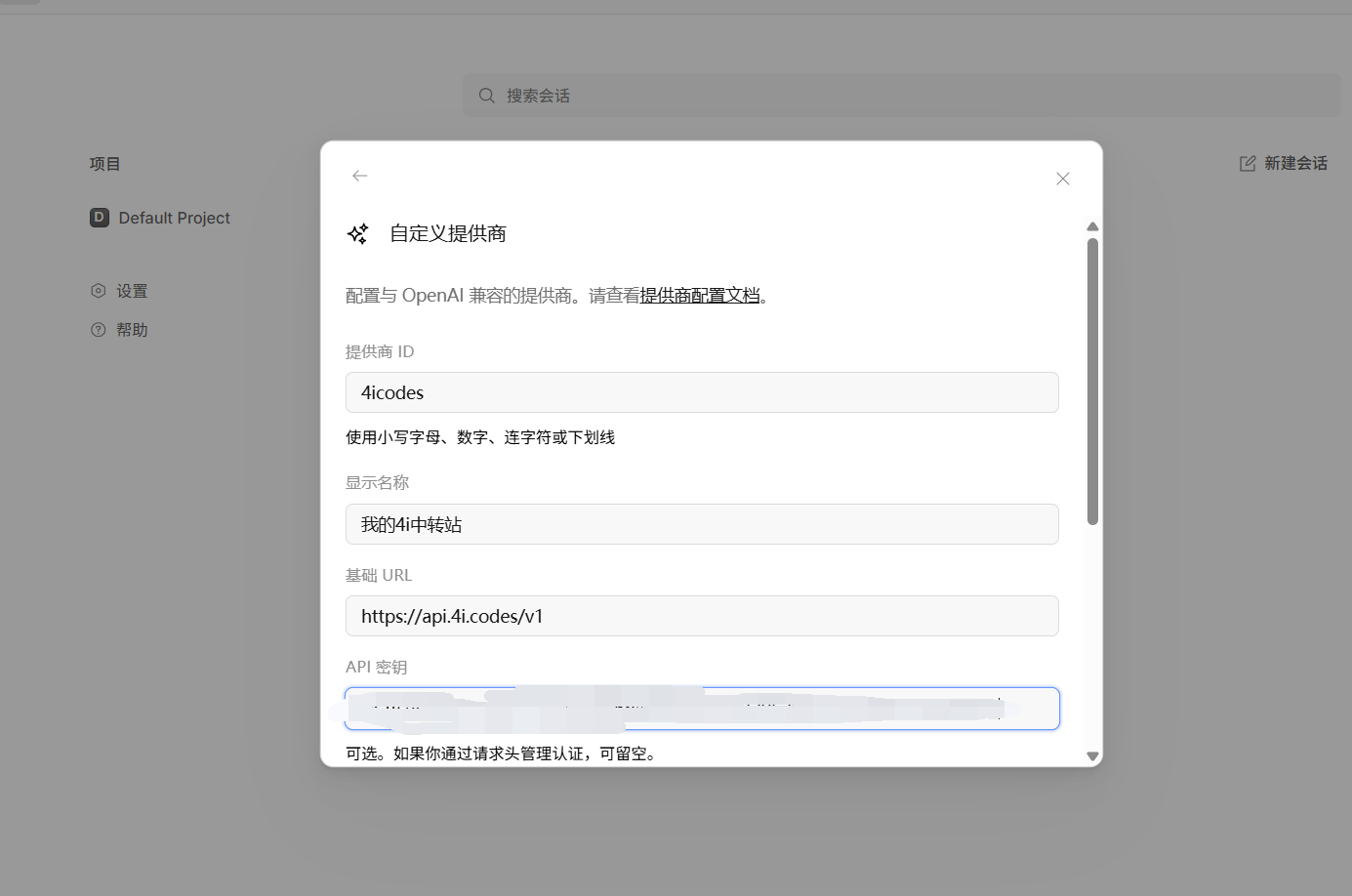
Scroll down to the Models section. Click Add model, then enter each model ID and display name in a separate row.
| Model ID | Display name |
|---|---|
gpt-5.6-sol | GPT-5.6 Sol |
gpt-5.6-terra | GPT-5.6 Terra |
gpt-5.6-luna | GPT-5.6 Luna |
gpt-5.5 | GPT-5.5 |
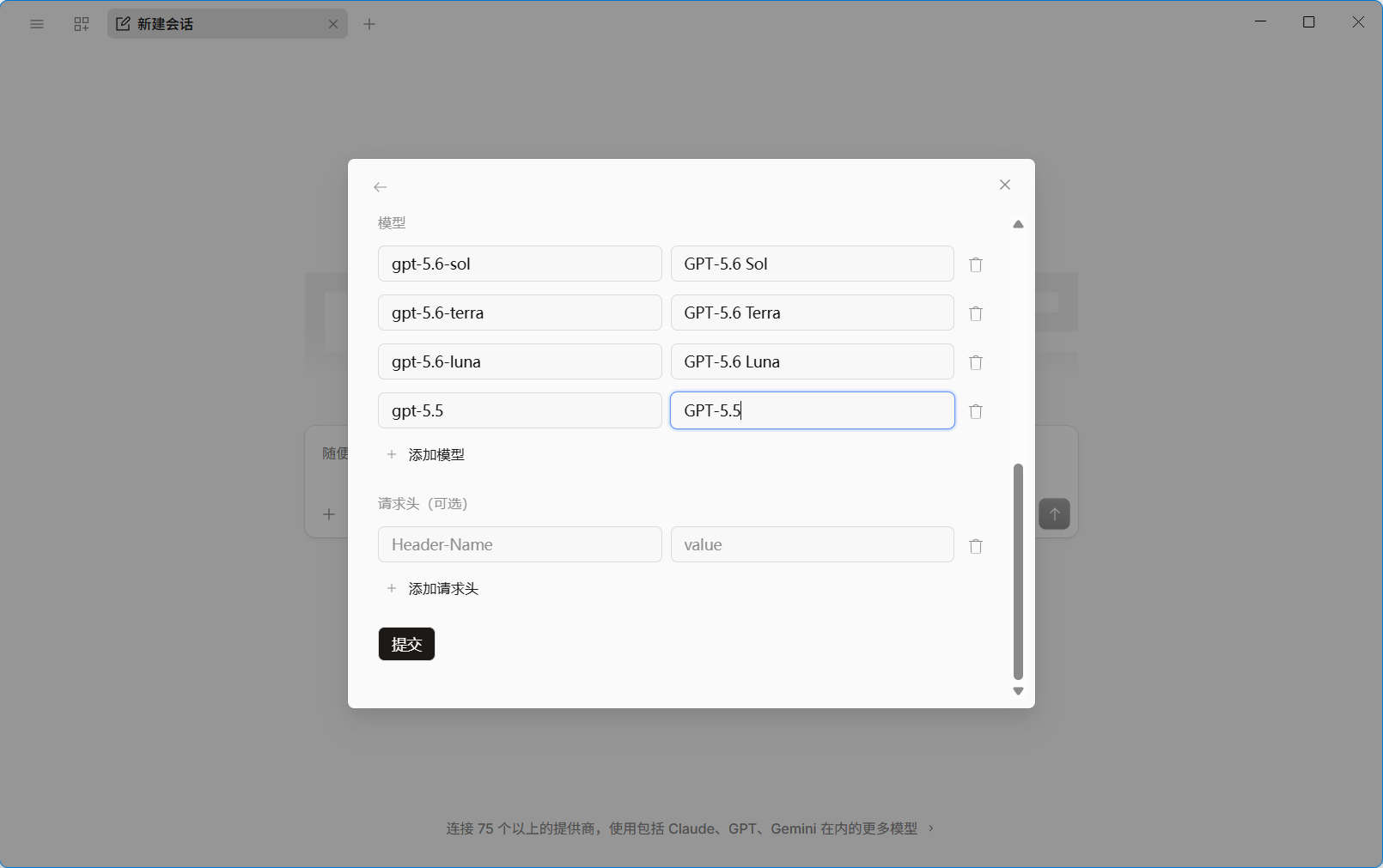
After adding the models, scroll down and click Submit.
Step 4: Test the model connection
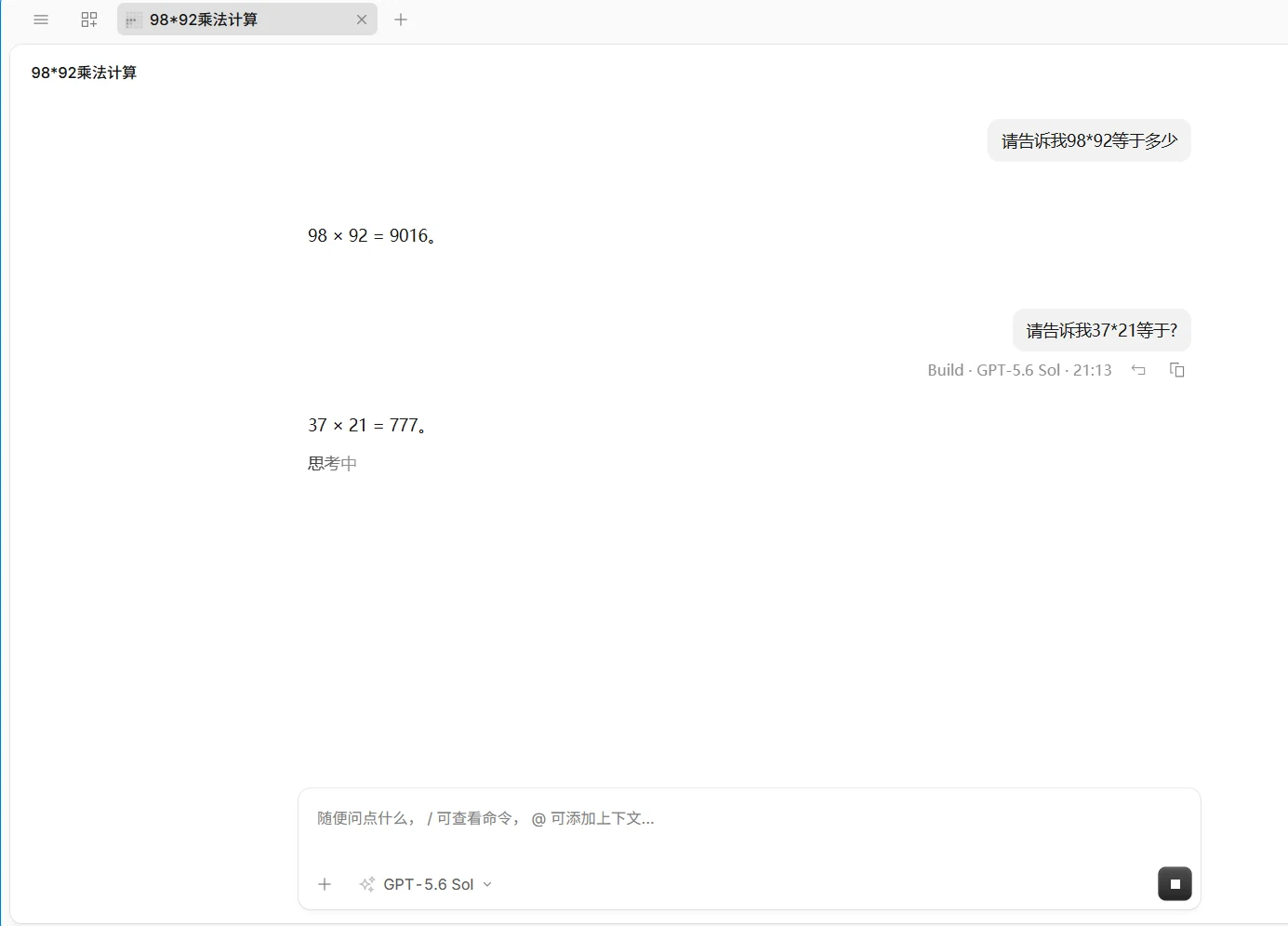
After submitting the provider, select one of the models you just added from the lower-left corner of the prompt box and send a simple test message. If the model replies normally, 4i.codes has been connected to OpenCode successfully.
Warning
An API key grants access to your account balance. Never share a complete key or commit it to a public repository.