8/13/26Less than 1 minute
Tips
For the easiest setup, use CC-Switch.
1. Install Codex
VS Code extension
Install the official extension from the Visual Studio Marketplace, or search for codex in VS Code.
Codex app
Follow the official Codex app quickstart.
2. Open the configuration directory
Windows
start "" "%USERPROFILE%\.codex"macOS
open "$HOME/.codex"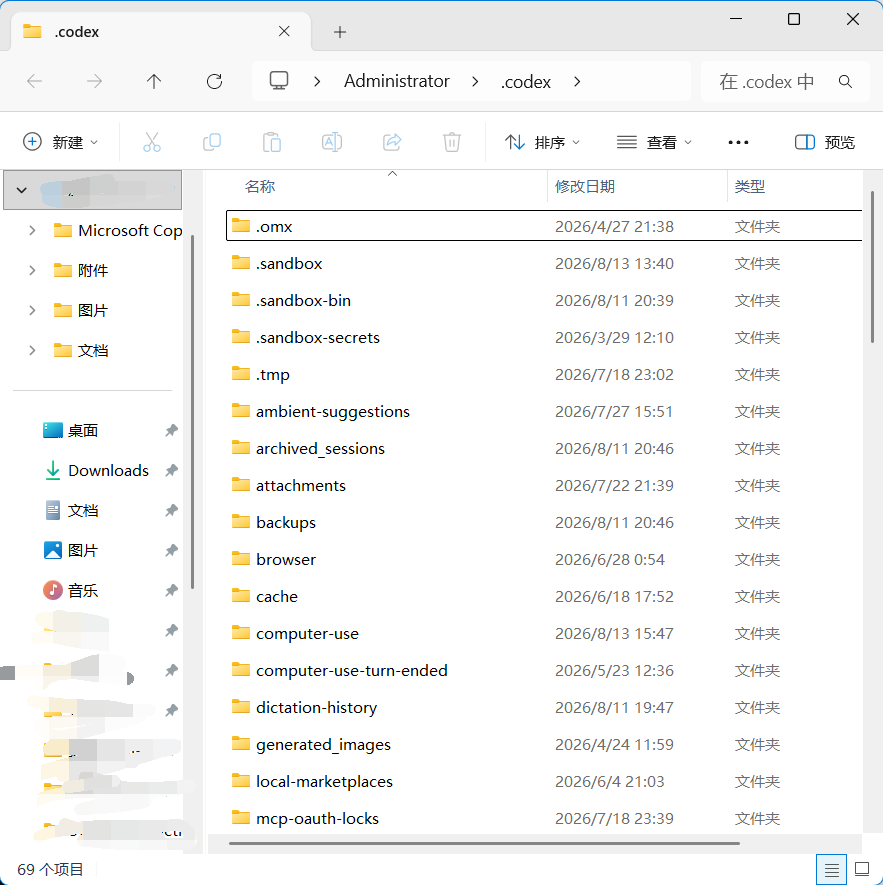
3. Create the configuration files
Create config.toml and auth.json with the following content.
config.toml
model_provider = "4icode"
model = "gpt-5.5"
model_reasoning_effort = "xhigh"
network_access = "enabled"
disable_response_storage = true
windows_wsl_setup_acknowledged = true
model_verbosity = "high"

[model_providers.4icode]
name = "4i.codes"
base_url = "https://api.4i.codes"
wire_api = "responses"
requires_openai_auth = true
auth.json
{
  "OPENAI_API_KEY": ""
}
Put your 4i.codes API key in OPENAI_API_KEY, save both files, and run codex.
Model selection
Avoid switching models inside an active CLI session. If you switched models, restart with:
codex -m gpt-5.5 -c model_reasoning_effort="xhigh"Restart Codex after every change to config.toml or auth.json. The same configuration applies to the VS Code extension and Codex app.